Fix: PC Can’t Read My USB Drive but It Still Has Important Data
It can be frustrating when you plug in a flash drive and your PC is unable access it or asks for a format, especially if you have recently saved important files.
🔍 Why Your USB Drive Might Not Be Readable
Before we get into the solutions, here are some common reasons your USB drive isn’t being recognized:
❌ Corrupted file system
🔌 Loose or damaged USB port
⚠️ Drive letter conflict
📄 Hidden or lost partitions
🦠 Malware or virus infection
Here’s a guide that will walk you through simple and effective ways to access and recover your data:-
1. Check for Physical Issues
Inspect the Drive: Make sure there are no visible physical damages.
Try Different Ports: Sometimes, the USB port can cause issues. Try connecting the pen drive to a different USB port or another computer.
2. Use CHKDSK to Fix File System Errors
Connect the pen drive to your computer.
Type “cmd” in the search box and open Command Prompt.
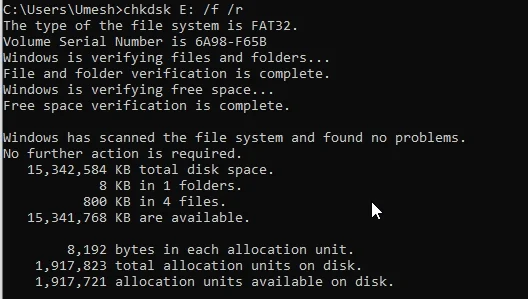
Type the command chkdsk E: /f /r(Note: replace E: with your drive letter)
Wait for the process to complete. Once it’s finished, your pen drive should be recovered.
Breakdown of the Command:
chkdsk — Runs the Check Disk utility, which scans and repairs file system issues.
E: — The drive letter of the partition you want to scan. (Change it to your drive.)
/f — Fixes any errors it finds on the disk.
/r — Locates bad sectors and attempts to recover readable data.
3. Use ATTRIB to show hidden, read-only files.
Connect the pen drive to your computer.
Type “cmd” in the search box and open Command Prompt.
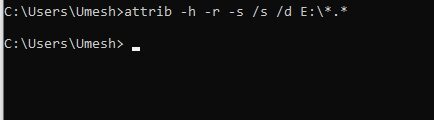
Type the command attrib -h -r -s /s /d E:\*.*(Note: replace E: with your drive letter)
Wait for the process to complete. Once it’s finished, your pen drive should be recovered.
Breakdown of the Command:
attrib: Windows command to change file/folder attributes
-h: Removes the Hidden attribute
-r: Removes the Read-only attribute
-s: Removes the System attribute
/s: Applies the command to all files in subdirectories
/d: Applies the command to folders as well
E:\: Target drive (you can also specify a folder path like E:\MyFolder)