Skip to content

How to Install Kali Linux on VirtualBox (Windows) – Step-by-Step Guide

    If you’re learning ethical hacking, penetration testing, or cybersecurity, installing Kali Linux on VirtualBox is one of the best ways to get started without affecting your main operating system. This guide walks you through  setting up Kali Linux on VirtualBox in Windows step-by-step.

    What You’ll Need

    Before we begin, make sure you have the following:

    1. Windows PC

    2. VirtualBoxDownload here

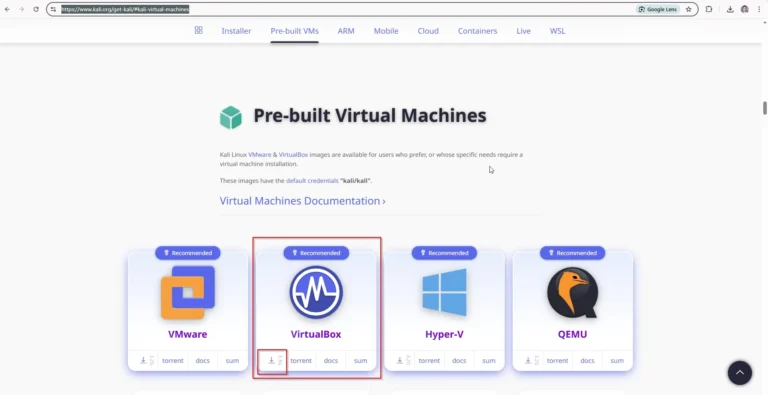
    3. Kali Linux VirtualBox ImageDownload from the official Kali site

    Step 1: Install VirtualBox on Windows

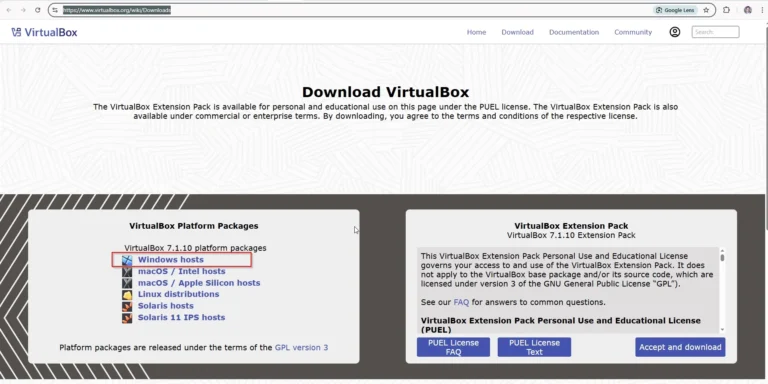
    1. Download from  VirtualBox downloads page.

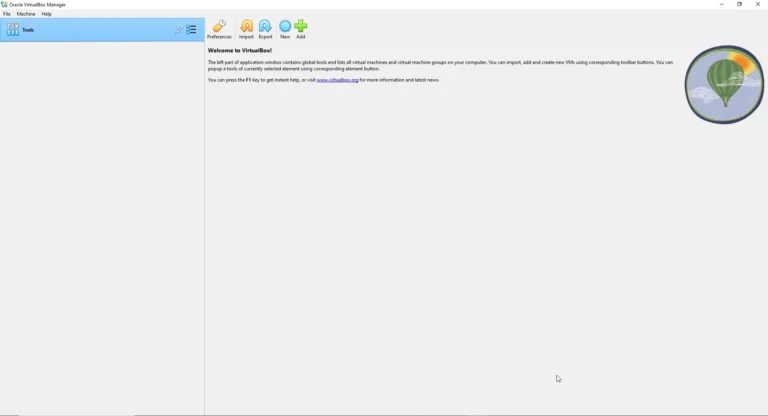
    2. Run the installer and complete installation & leave all default selection.

    Step 2: Download and Import Kali Linux OVA

    An OVA file (Open Virtual Appliance) is a single file package that allows for distribution and  setup of virtual machines (VMs).

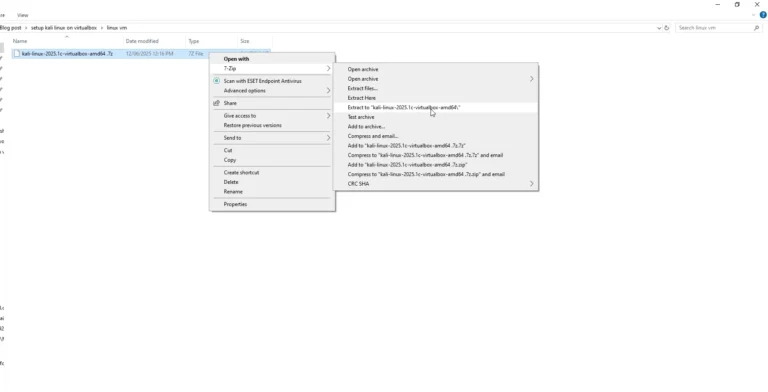
    2. Extract the downloaded file with 7zip.

    Note:- If you dont have 7Zip extracter download from here

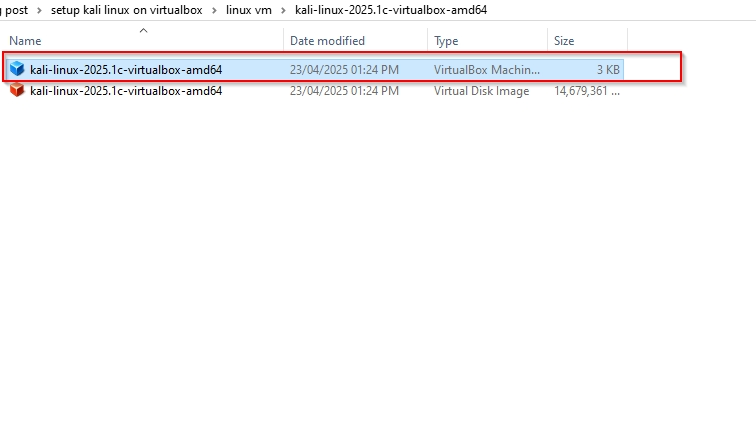
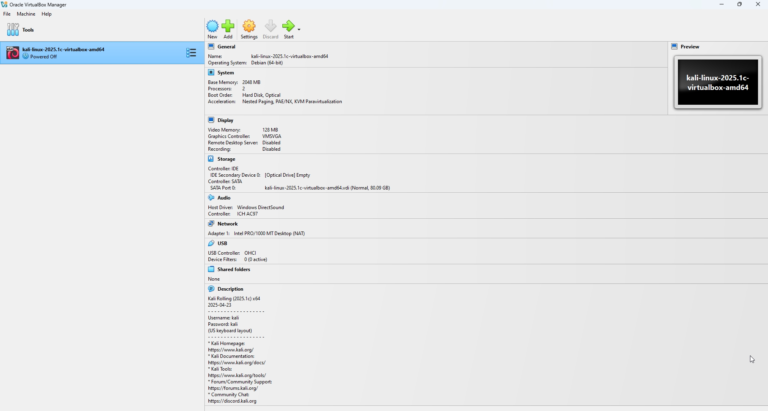
    3. Go to extracted Folder and click on .vbox file. It automatically setup 

    4. Kali Linux on VirtualBox is ready. You can now start and use it.