Can’t Delete a File No Matter What? Here’s How to Delete It
Sometimes we come across situations where we are unable to delete a file or folder because another program uses the files. These files can be weird files created during software installation, leftover files after uninstallation, or temp folder files that you are trying to delete.
You may have tried all of these things, but none of them worked, and the file or folder could not be deleted:
Tried using the del command in CMD (tried both names of the file, but it said the file did not exist)
Tried renaming the file (can’t be renamed)
Tried using an app
Tried booting in Safe Mode
Restarted the laptop multiple times
Refreshed the desktop multiple times
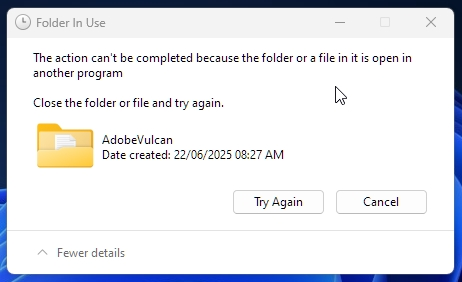
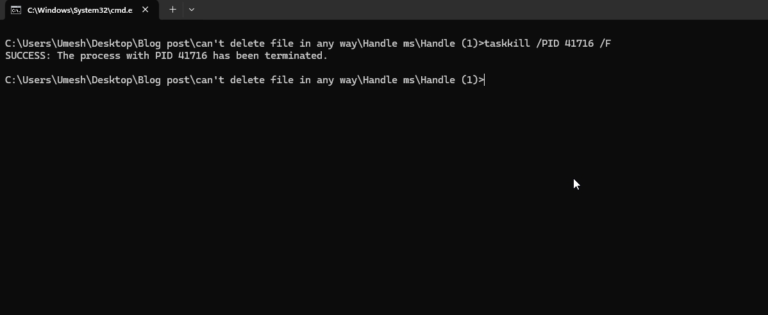
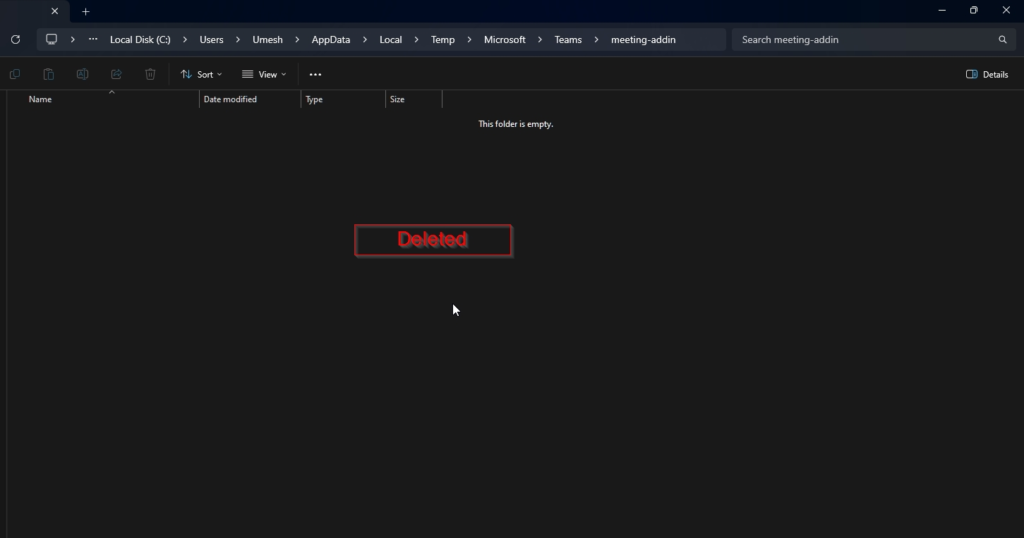
“The action can’t be completed because the folder or a file in it is open in another program” is an error we usually get. We will kill the processes or programs that are using the file or folder, and then we can easily delete the file. We will follow simple steps to resolve this:-
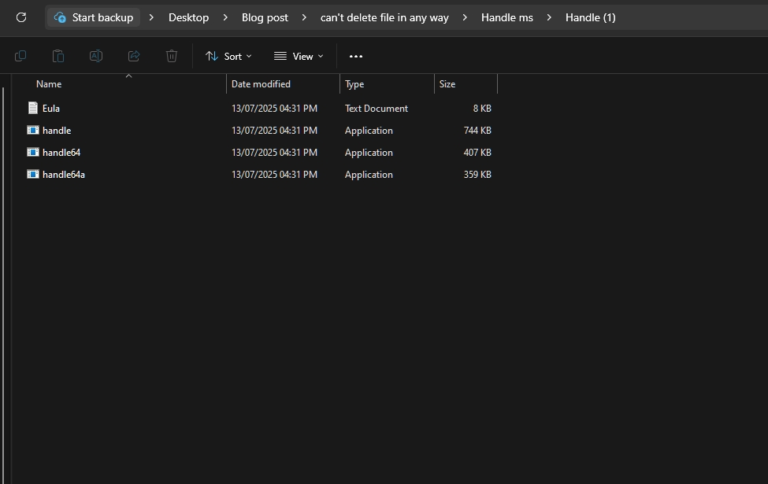
1. Download Handle command-line utility from Microsoft – click here
2. Unzip the Handle file.
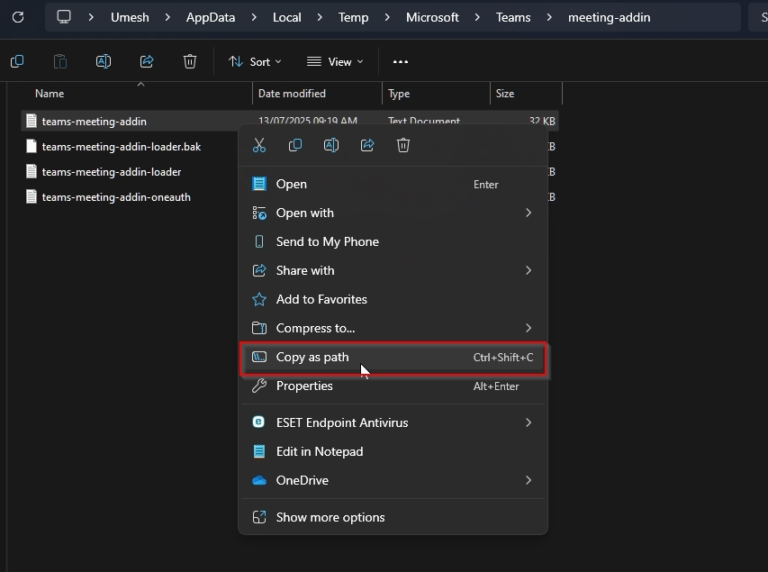
3. Copy file path you can’t delete.
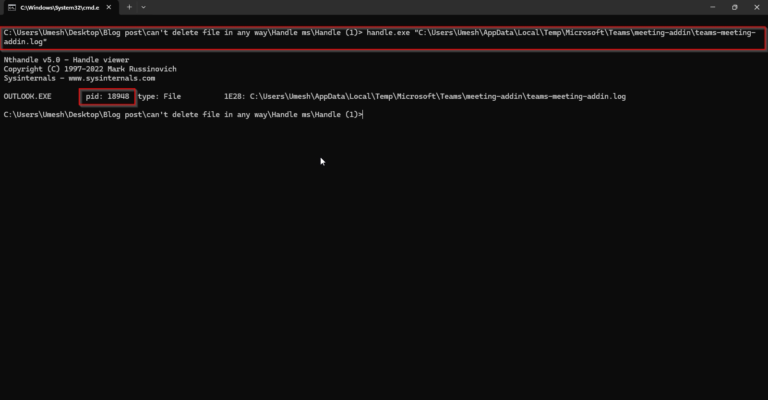
Eg :- Right click and copy file path : “C:\Users\Umesh\AppData\Local\Temp\Microsoft\Teams\meeting-addin\teams-meeting-addin.log”
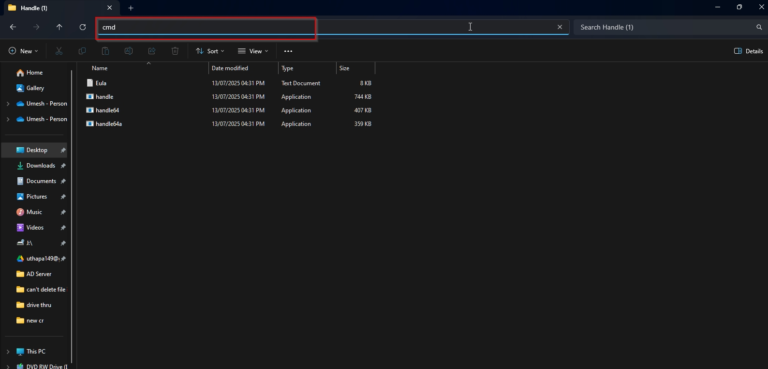
4. Go to the Handle folder, open Command Prompt (CMD).
5. Type the Cmd Command.
CDM : handle.exe “paste the unable to delete file path (as step 3)”