Private: How to use a password manager (free KeepPassXC setup walkthrough)
KeePassXC is an excellent choice for anyone who wants to keep passwords in one place. It is especially useful for IT admins and anyone who needs to manage a lot of passwords. It has strong encryption and reduces the risk of password security incidents. It will take a few minutes to set up and start using.
Depending entirely on KeePass to store all your passwords is not a good idea because the database is saved on your PC. If the PC crashes or the database file gets deleted, all passwords could be unrecoverable. So, it is best to keep a backup copy of your passwords in an encrypted Excel file or a backup of the KeePass database on a USB/external drive.
Step 1: Download and install KeePassXC
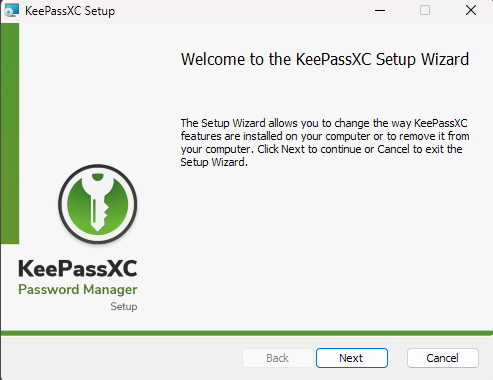
Download KeePassXC from the official website and install it. Keep the default installation options
Step 2: create Database
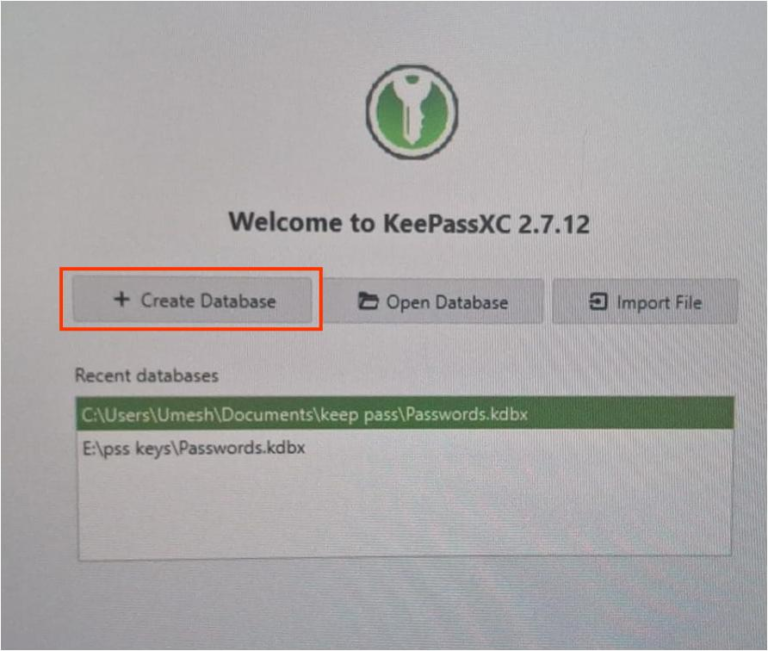
Click Create new database. Enter a name for you database and keep everything default. Save the database file in safe location.
Step 3: Create Folders or Groups
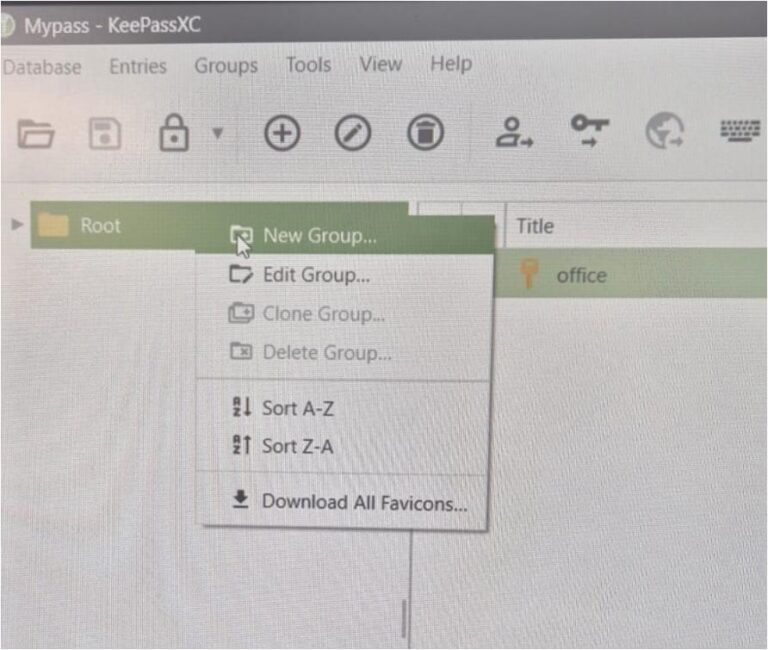
Create folders or groups based on the location, department, or type of account, and store passwords accordingly.
Work
Personal
Servers
Email
Banking
Step 3: Add a New Entry – Username & Password
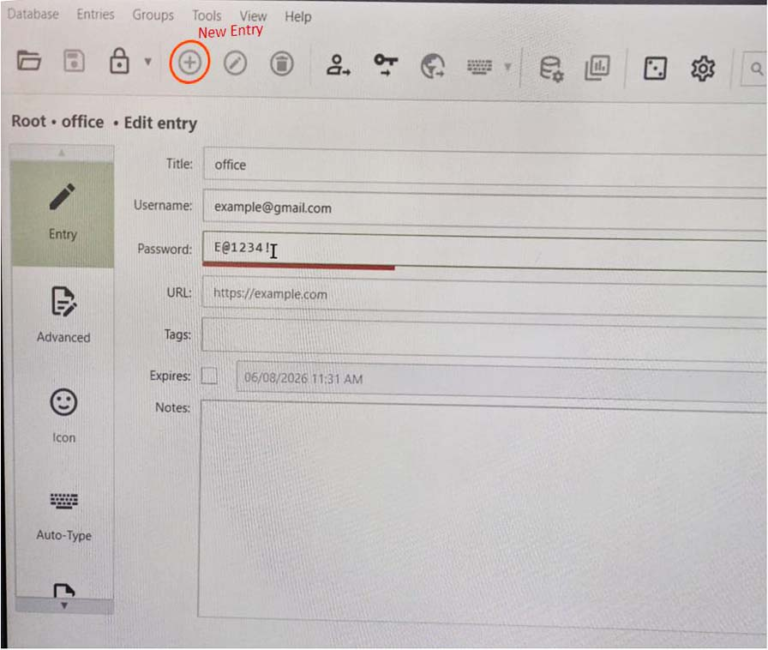
Click New Entry at the top, then enter the username and password you want to save.
Conclusion
KeePassXC can be a useful tool for securely managing your passwords.
During the KeePassXC database setup, make sure you use a strong master password and keep it in a safe place so you don’t lose it. Keep a secure backup of your database on a USB or external drive. This will help prevent data loss if your PC fails or the database is accidentally deleted.